
Automatic Due Dates from Fulfillment Deadlines and Delivery Dates
Kanbanify can set an order's Internal due date automatically when Shopify or the order already carries the date you plan production around.
Kanbanify can set an order’s Internal due date automatically when Shopify or the order already carries the date you plan production around.
Automatic due dates apply to Shopify Orders only and remain an internal planning signal, not a customer delivery promise. They are the automatic counterpart to the dates you set by hand in Internal Due Date: Board, Views, and Order Details.
Turn On Automatic Due Dates
- Open Kanbanify Settings.
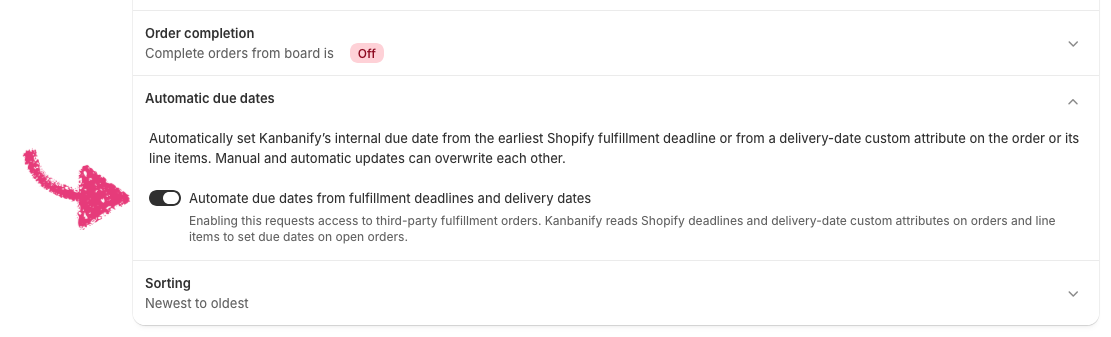
- Expand Automatic due dates.
- Turn on Automate due dates from fulfillment deadlines and delivery dates.
This switch applies immediately, so you do not use the Settings Save action.
Turning the setting on asks Shopify for access to third-party fulfillment orders. If the permission is not granted yet, the section shows Needs permission; turn the setting on again to approve the request in Shopify Admin.
Where the Due Date Comes From
When automatic due dates are active, Kanbanify uses the first usable value it finds from two sources:
- The earliest Shopify fulfillment deadline for the order.
- A delivery-date custom attribute on the order or its line items.
For custom attributes, Kanbanify matches by name instead of an exact label. A name is recognized when it contains date and also contains due or deliver, so Delivery Date, delivery_date, and Due date all match, while unrelated names such as Delivery Time do not. Order-level attributes are read before line-item attributes, and the first non-empty value wins.
Accepted values are ISO YYYY-MM-DD or Month DD, YYYY with English month names, such as Oct 15, 2026.
Important Behavior
- Automatic due dates run only for shops where the feature is active.
- A missing or unparseable delivery date is skipped silently. The order still places normally, and its stage, position, tags, and Shopify Flow behavior are unchanged.
- Manual and automatic updates can overwrite each other, and both automatic sources write the same internal due date, so the most recent update wins.
- Turning the setting off stops future automatic updates and removes the fulfillment-order webhooks. Existing due dates stay on the orders.
Was this article helpful?
Thanks for your feedback!