
Kanbanify Kanbanify
🇩🇪

Neuigkeiten

Die neuesten Funktionen, Verbesserungen und Fehlerbehebungen für Kanbanify.

November 2026

New · · Kanbanify Support Kanbanify Support

4.12.0 — See SKU and Delivery Method in Order cards

Two card-detail additions for Orders boards, both configurable per board in Settings → Card details.

### Choose what your line items show: product name or SKU

Every card row used to show the product name. Now each board picks what its line items display:

  • Product name or SKU — as text, or Thumbnail, Thumbnail and product name, and Thumbnail and SKU
  • In SKU mode rows read 2x SHIRT-BLK-M, with the product name shown beneath in the expanded items list so same-named variants stay distinguishable
  • One Line item display setting replaces the old pair of controls, and existing boards keep rendering exactly as before

The SKU is the one Shopify recorded when the order was placed — so a variant you add a SKU to later still shows its product name on older orders, and no row is ever left blank.

Show the delivery method on each Orders card

Turn on Delivery method and every Orders card gains a row with the order’s shipping method — the same way you already see vendor and tags:

  • One method shows as-is; several show the first plus +N, with the full list on hover
  • Blank or missing shipping info renders no row rather than an empty placeholder
  • Off by default, so nothing changes on your boards until you turn it on

Where to find it: Settings → Card details, per board.

Oktober 2026

New ·

v4.5.0 — Ask Shopify Sidekick about your production work

Kanbanify answers Shopify Sidekick questions about the work already on your boards, so you can check production state without opening the app.

Ask where order #1042 is, how many items are in Quality Check, what is due this week, or where t-shirts are routed. Sidekick uses the same boards, stages, due dates and filters you see in Kanbanify, and links you back to the board.

  • One order or draft order — its current stage, internal due date, assignee and card marker, plus where each of its line items sits on a Production board.
  • Every board’s stages — the stages in workflow order and how many orders, draft orders or line items are in each one right now.
  • Cards that match a filter — by stage, tag, due date or text, with a total and a link to the board.
  • How your workflow is set up — boards and stages, product-type routing rules, stage tags, automatic due dates, and completing orders from the board.

Answers are read-only: Sidekick cannot move or edit a card. They use the signed-in staff member’s Shopify permissions, and they never include customer email, phone, addresses or notes, or staff email addresses.

Long answers are capped so replies stay fast. When a count is capped, Kanbanify reports it as “at least” instead of presenting it as exact.

New · · Kanbanify Support Kanbanify Support

v3.38.0 — Automatically use your saved Delivery Date as the Kanbanify due date

Keep your Orders board automatically aligned with your fulfillment schedule and delivery timelines.

Turn on Automate due dates from fulfillment deadlines and delivery dates in Orders board Settings and grant the requested Shopify permission.

Fulfillment Deadlines: Automatically sets an order’s internal due date using the earliest Shopify fulfillment deadline.

Delivery Dates from Custom Attributes: Automatically detects date attributes on the order or line items (such as Delivery Date, delivery_date, or Due date).

Missing or unparseable dates are skipped silently without affecting order placement, tags, or Shopify Flow triggers.

To learn more, check out the documentation page.

September 2026

New · · Davide - Kanbanify Founder Davide - Kanbanify Founder

v3.37.0 — Automatic due dates from Shopify fulfillment deadlines

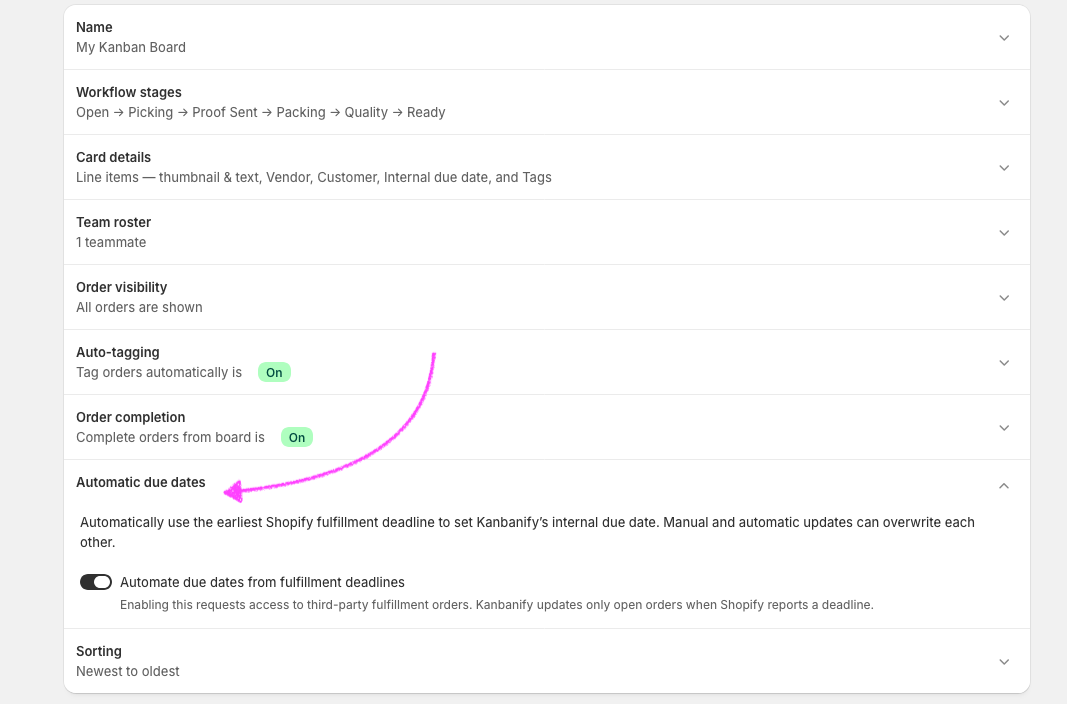
Keep your Orders board aligned with Shopify’s fulfillment deadlines. Turn on Automate due dates from fulfillment deadlines in Orders board Settings and grant the requested Shopify permission.

Screenshot of the Automate due dates section in the Settings

When a fulfillment deadline changes for an open order, Kanbanify uses the earliest deadline as that order’s internal due date, so your team can spot upcoming work on the board. You can still edit due dates manually; the most recent manual or automatic update takes precedence.


Do not forget to visualize the internal due dates in each Kanbanify card by enabling it in the Card details section of Settings.

New · · Davide - Kanbanify Founder Davide - Kanbanify Founder

v3.31.0 — Shopify Flow Automation for Draft Orders

Turn your Draft Orders into dependable Shopify Flow automations.

  • A new Draft order stage changed trigger starts when Kanbanify places an open Draft Order on your Drafts board or moves it between stages.
  • New actions let you set a Draft Order’s stage, set its marker, or assign it to a teammate from your Kanbanify roster, without leaving Flow.

Flow triggers and actions now report the exact change they confirmed, so workflows receive clearer, more reliable events. Order and Draft Order task names and descriptions follow one consistent style, making your workflows easier to build and maintain.

August 2026

New ·

v3.26.0 — Due dates and order tools in Shopify Admin

Keep your team on schedule and manage more of the workflow without leaving Shopify Admin.

  • Add internal due dates to orders and see overdue or upcoming work on the board.
  • Create Kanbanify Orders views for teams, due dates, and open orders that still need a due date.
  • View or update an order’s Kanbanify stage, assignee, and due date from Shopify Admin.
  • Print selected orders as physical Kanbanify Cards.

Manual sorting is also easier to discover, and you can choose whether due dates appear on order cards.