
Managing Order Notes from Your Board
Read and update notes directly from Kanbanify cards, without leaving your board. Changes are saved to the order or draft order in Shopify.
Read and update notes directly from Kanbanify cards, without leaving your board. Changes are saved to the order or draft order in Shopify.
Read a Note
Click or tap a card’s Note badge to read its saved note. Scroll inside the panel for longer text, then close it with X or by clicking outside.
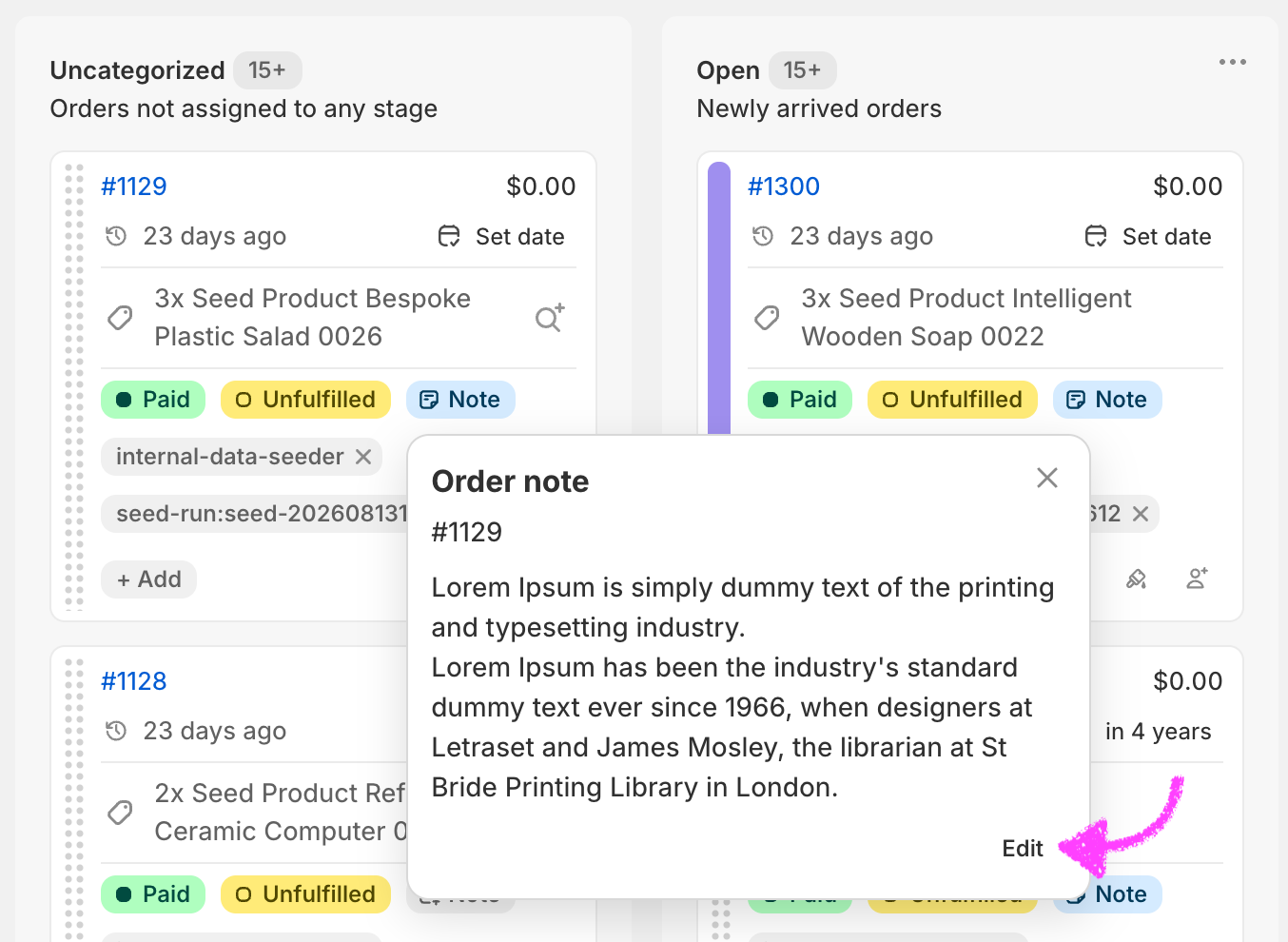
Add, Edit, or Delete
- Add: click Note on a card without a saved note, enter your text, and choose Save note.
- Edit: open the note, choose Edit at the bottom right, update the text, and choose Save note.
- Delete: choose Edit, clear the text, and select Delete note. This removes the note from Shopify too.
Notes support plain text and line breaks, up to the editor’s 5,000-character limit. Changes are not saved automatically: choose Cancel, then Discard changes to discard edits. If saving fails, your text stays in the editor so you can Try again.
Available for Orders and open Draft Orders. Notes on completed Draft Orders remain read-only.
Was this article helpful?
Thanks for your feedback!