
Bulk Printing Packing Slips by Stage
Many merchants include a Ready to Ship stage in their workflow. When orders reach that stage, the next job is often the same: collect the matching orders and print every packing slip without opening orders one by one.
Many merchants include a Ready to Ship stage in their workflow. When orders reach that stage, the next job is often the same: collect the matching orders and print every packing slip without opening orders one by one.
Kanbanify makes this easy by storing a stable Stage ID on each Shopify order. Copy the ID from your board, use it to filter the Shopify Orders list, and then run Shopify’s bulk packing-slip action.
Copy the Stage ID from Kanbanify
- Open your Kanbanify board.
- Find the workflow stage you want to process, such as Ready to ship.
- Click the three-dots Stage actions menu in the column header.
- Click Copy stage ID.
The Stage actions menu is in the top-right corner of each custom workflow stage.
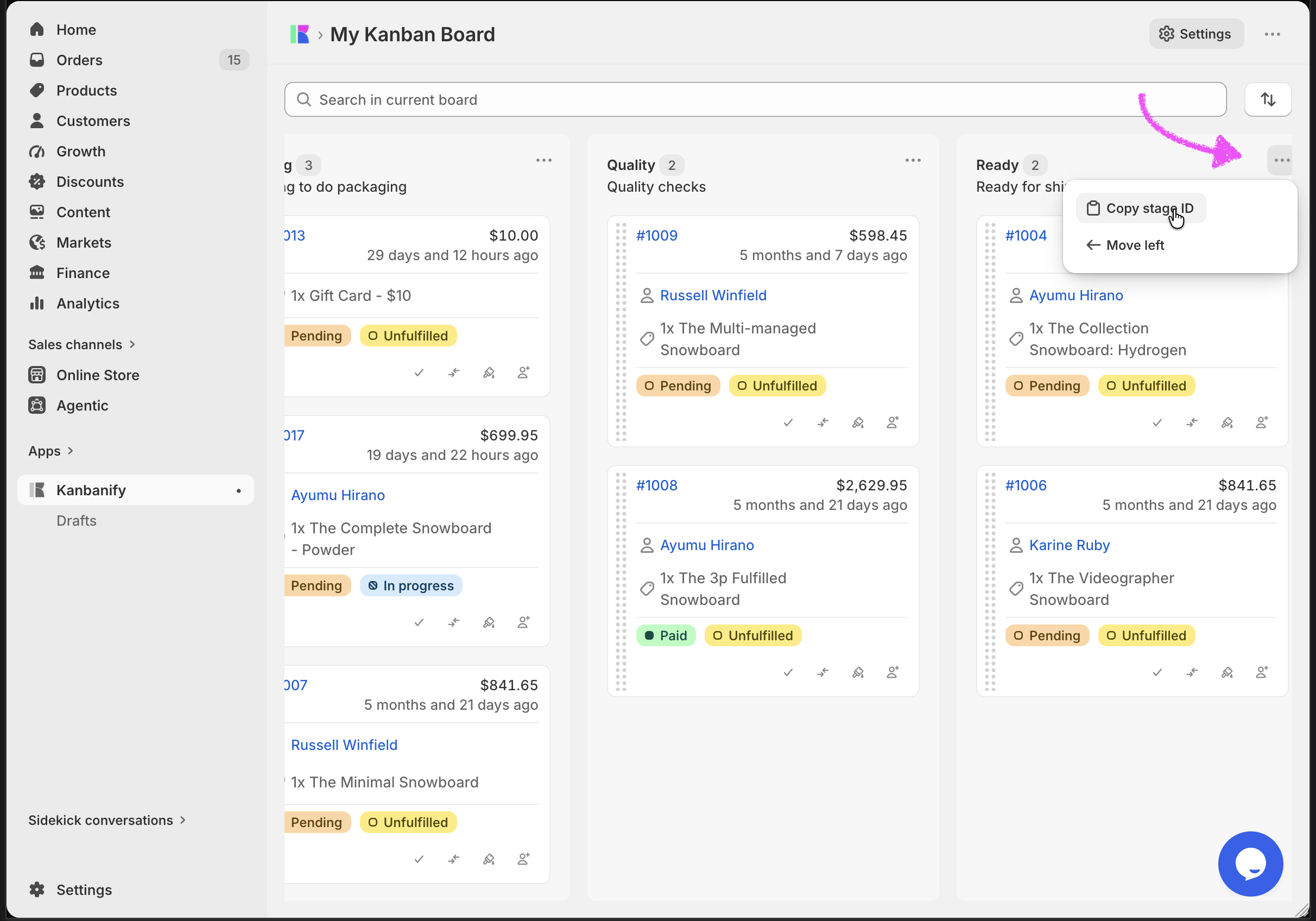
Kanbanify confirms the action with a Stage ID copied message.
System-managed columns such as Uncategorized and Fulfilled don’t have this menu.
Filter Your Shopify Orders
On the standard Orders list in Shopify Admin:
- From your Shopify admin, go to Orders.
- In the Orders search bar, type Metafields, then select Kanbanify Stage ID.
- Paste the Stage ID you copied from Kanbanify and apply the filter.
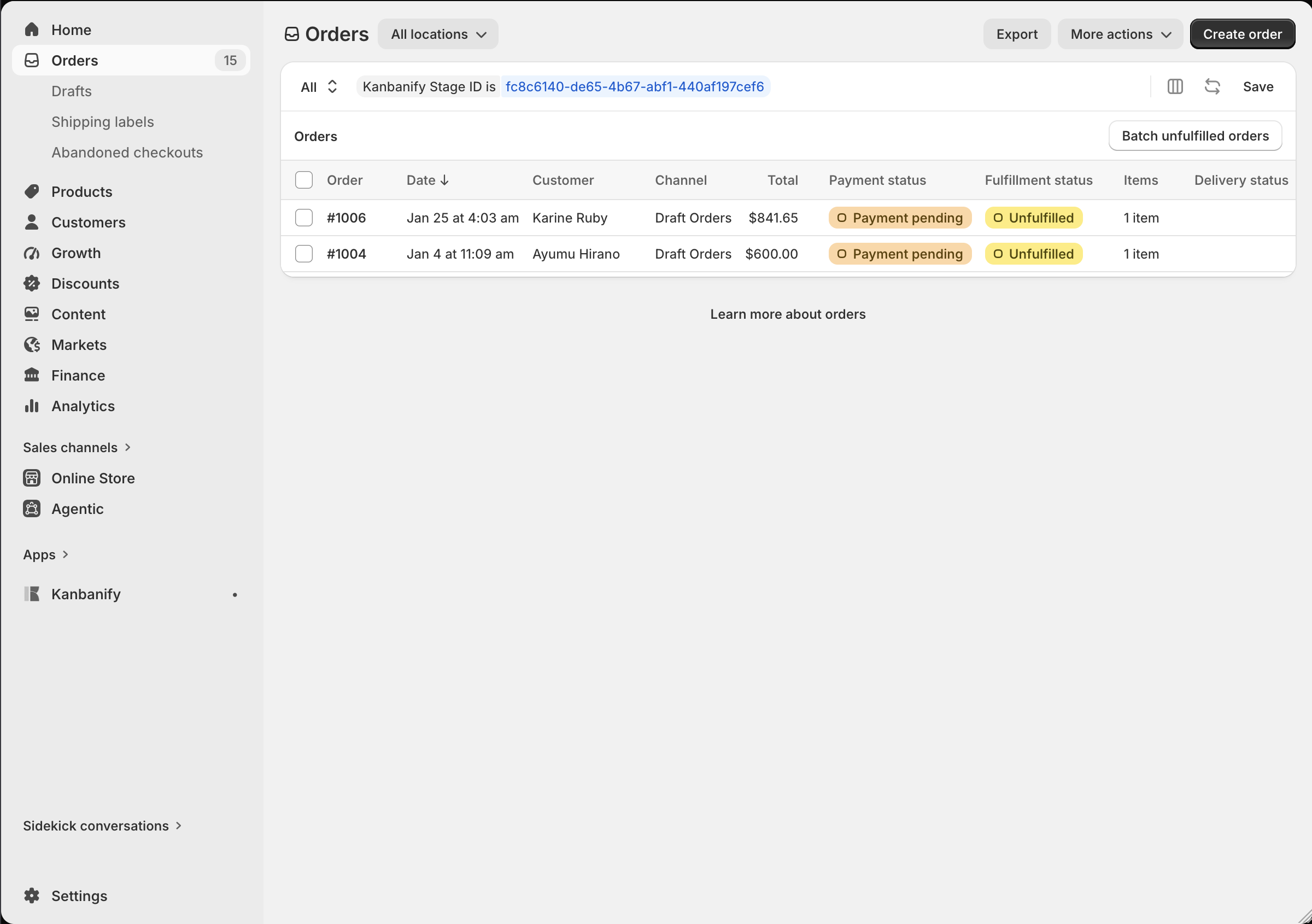
The completed filter shows the Kanbanify Stage ID and only the orders currently assigned to that stage.
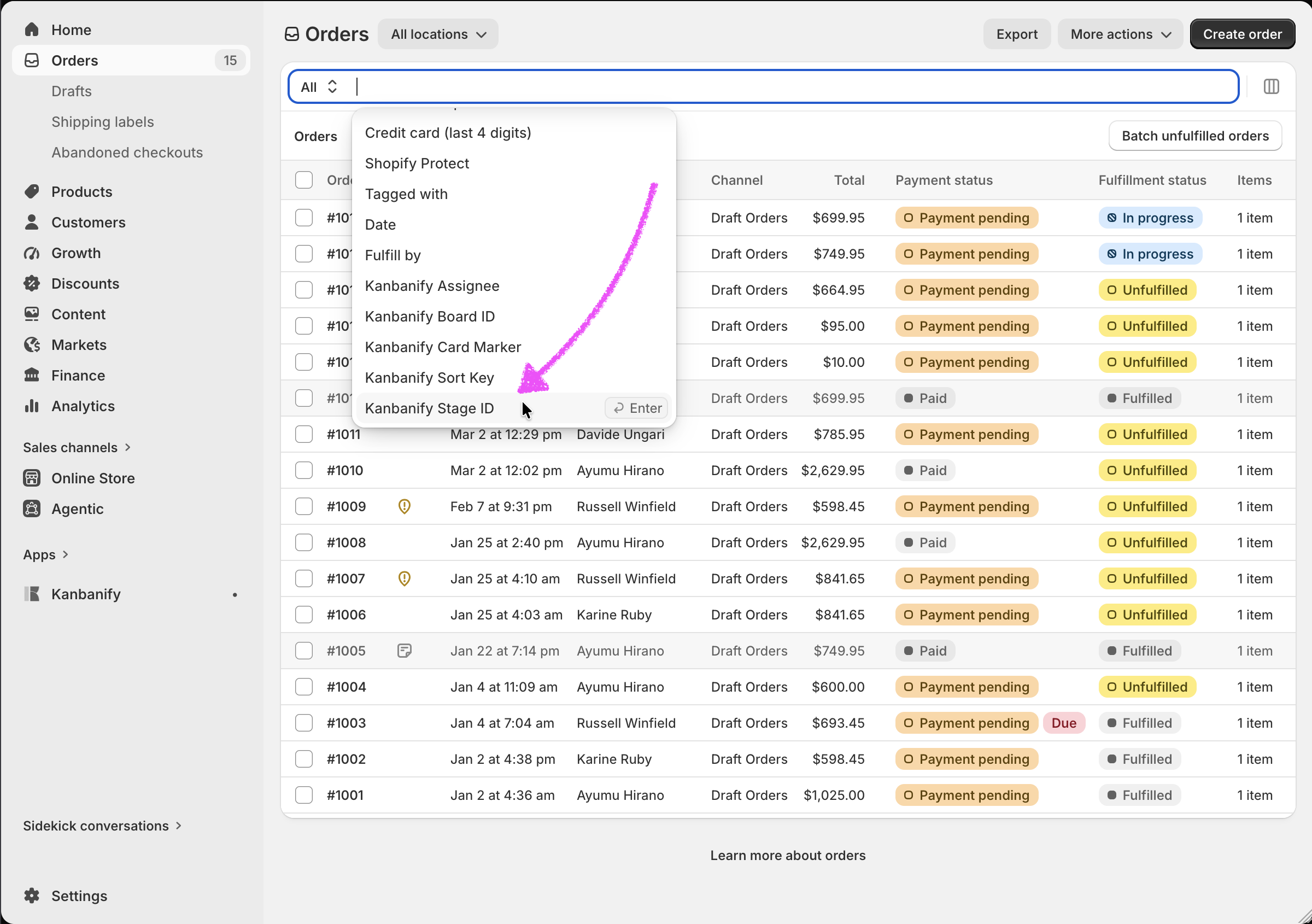
Review the filtered list before continuing, especially if you’ve combined the stage filter with other order filters.
Save the Filter as a View
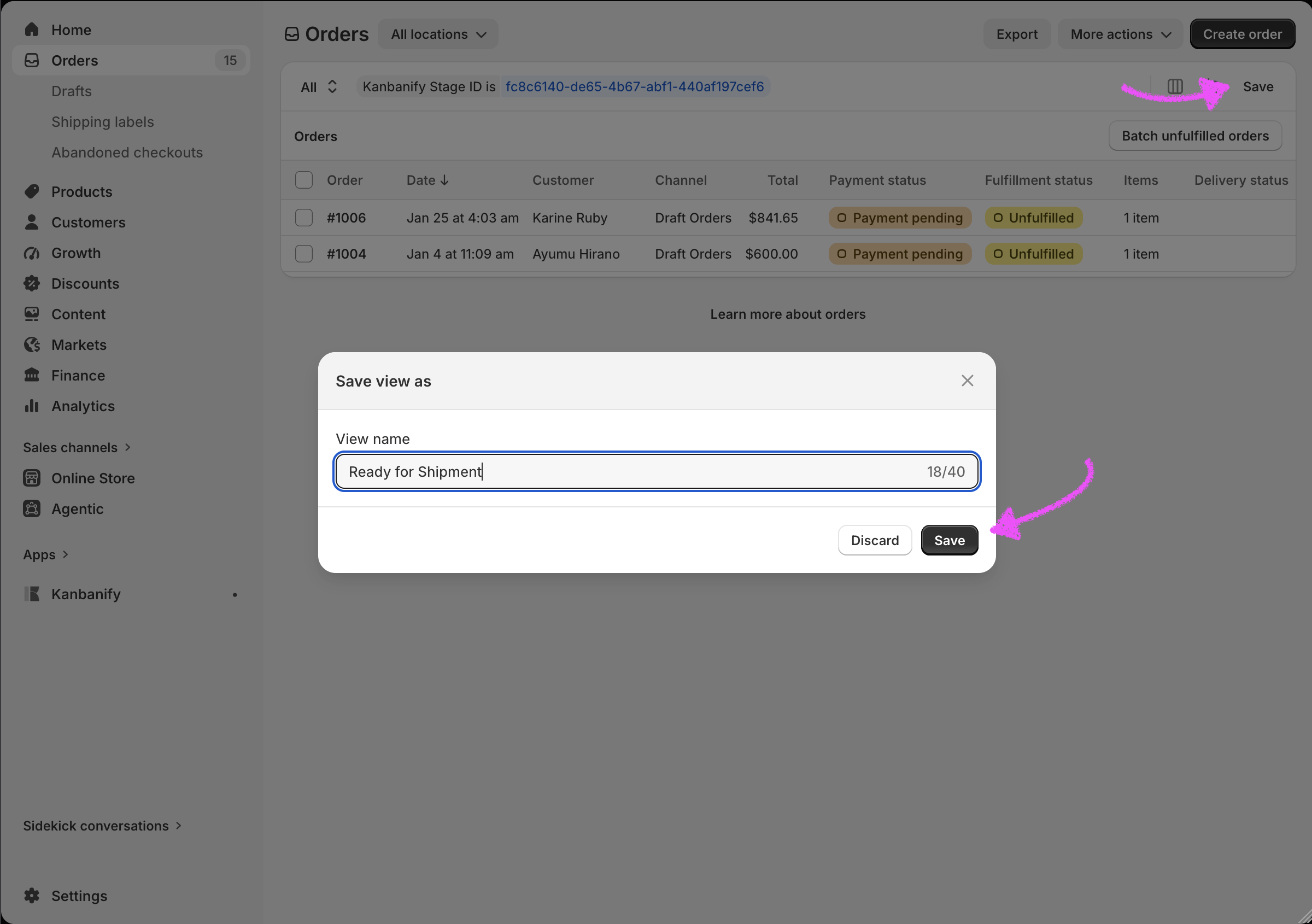
If you print packing slips from this stage regularly, save the filter so you only need to set it up once:
- Click Save as.
- Give the view a clear name, such as Ready to ship.
- Click Save view.
The saved view is then available from the view menu on your Shopify Orders page, and it updates automatically as orders move into or out of the Kanbanify stage.
Print Packing Slips in Bulk
Finally:
- Select the orders in the filtered list whose packing slips you want to print.
- Click the three-dots bulk actions menu, then click Print packing slips.
- If your store has multiple locations, select the location fulfilling these orders and click Continue.
- Print the packing slips or save them as a PDF.
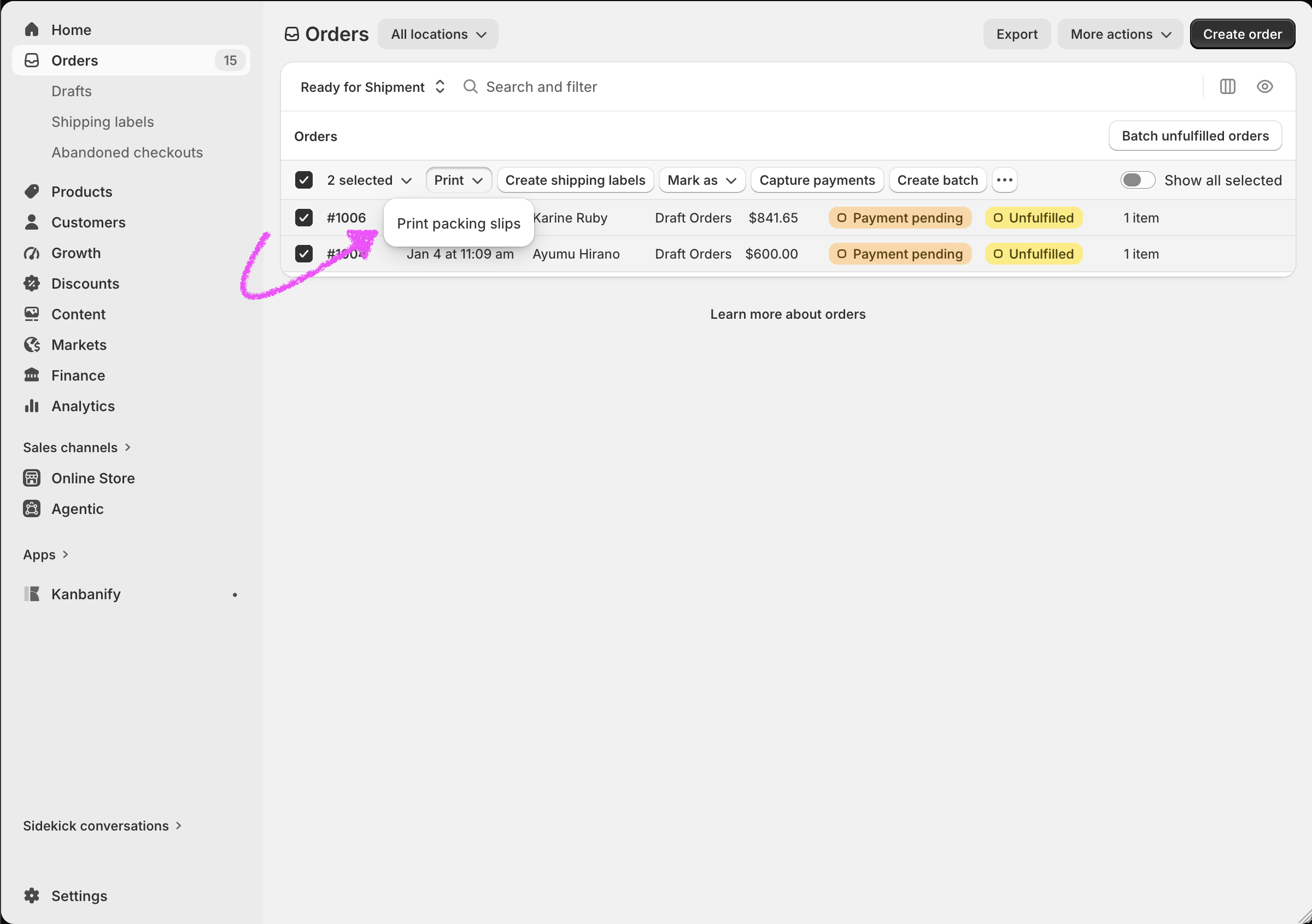
Shopify then opens the packing slips so you can review and print them together.
Was this article helpful?
Thanks for your feedback!