
Internal Due Date: Board, Views, and Order Details
Use Internal Due Date as your planning signal when you want the board to show what should be handled first.
Use Internal Due Date as your planning signal when you want the board to show what should be handled first.
Internal due dates are available for Shopify Orders only. They support production planning and are not customer delivery promises.
Kanbanify can also set this date automatically from Shopify fulfillment deadlines or a delivery-date custom attribute on the order. See Automatic Due Dates from Fulfillment Deadlines and Delivery Dates.
Use Internal Due Dates on the Board
Open an Orders board and go to Settings → Board → Card details, then enable Internal due date.
Each card then shows a two-column date row. The left column shows when the order was created, while the right column shows its internal due date. A set date appears as a relative label with the exact date available on hover or focus. Cards without a due date prompt you to add one, and dates that are overdue or due today are visually emphasized.
Editing a due date doesn’t change the card’s stage, sort order, or position.
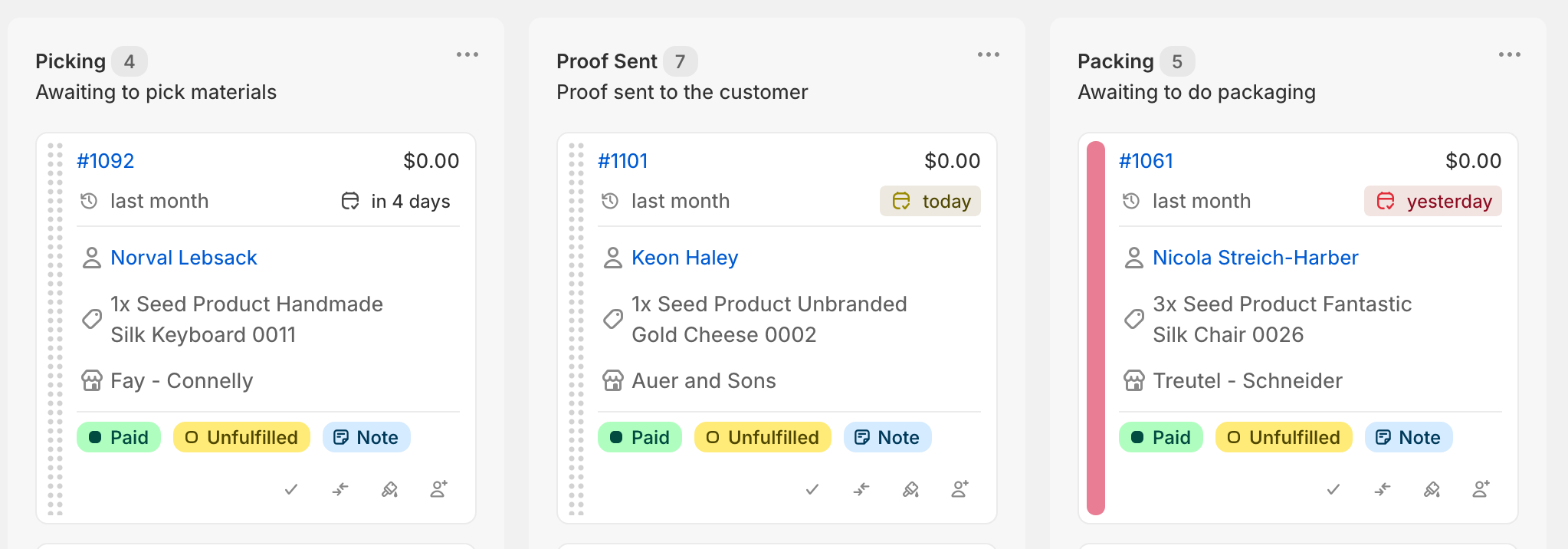
To edit a due date from the card:
- Click the due-date area on the card.
- Choose a date in the date picker.
- Click Save.
- If a date is already set, use Clear date to remove it.
Triage Orders with Planning Views
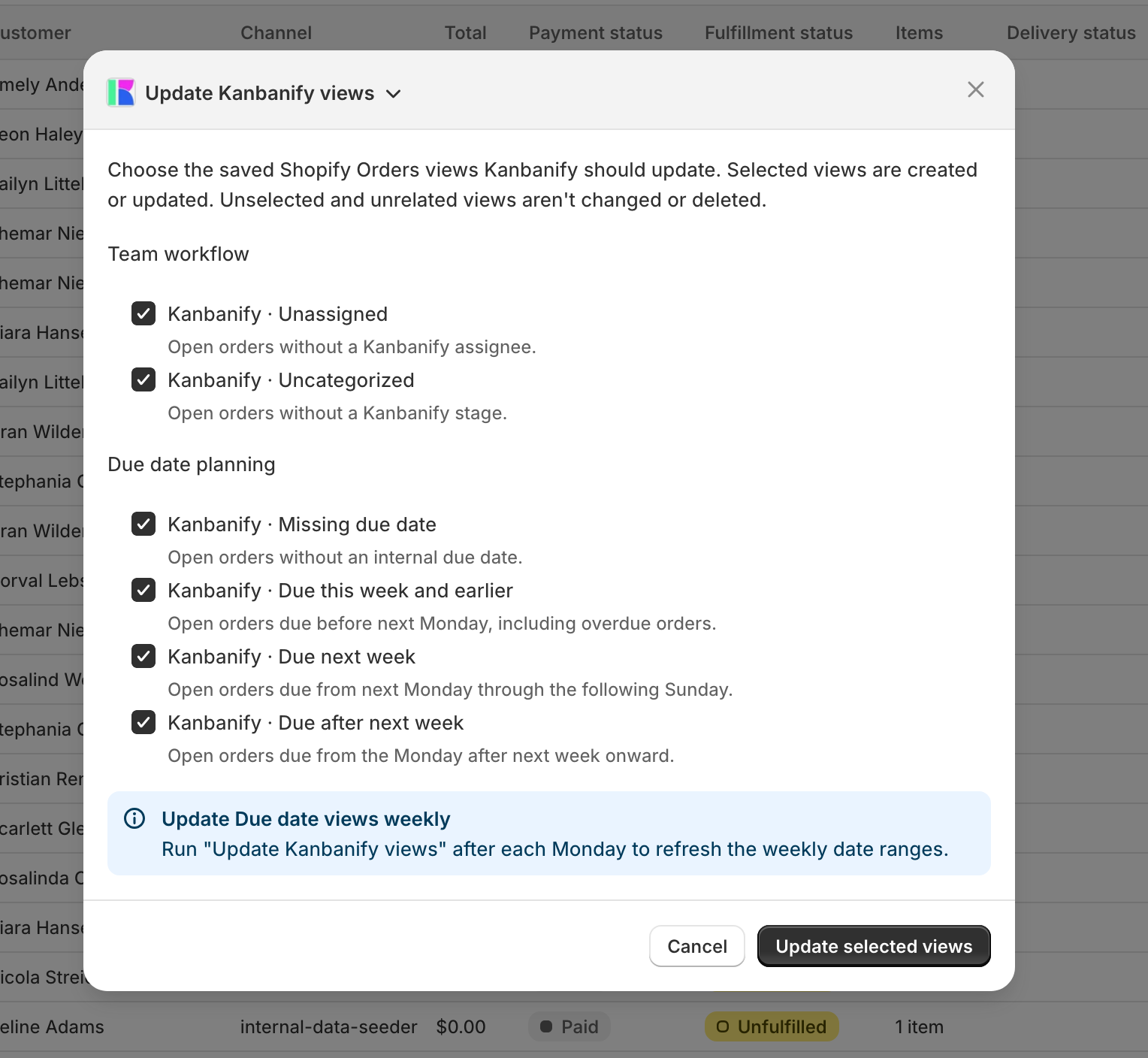
Kanbanify provides four managed Shopify Orders views: Kanbanify · Missing due date, Kanbanify · Due this week and earlier, Kanbanify · Due next week, and Kanbanify · Due after next week.
To add or update these views:
- Open More actions in Shopify Orders.
- Choose Update Kanbanify views.
- Keep the due-date views you need selected.
- Click Update selected views.
After the update, reload the page to refresh the local cache and open a saved view from the Shopify Orders view switcher.
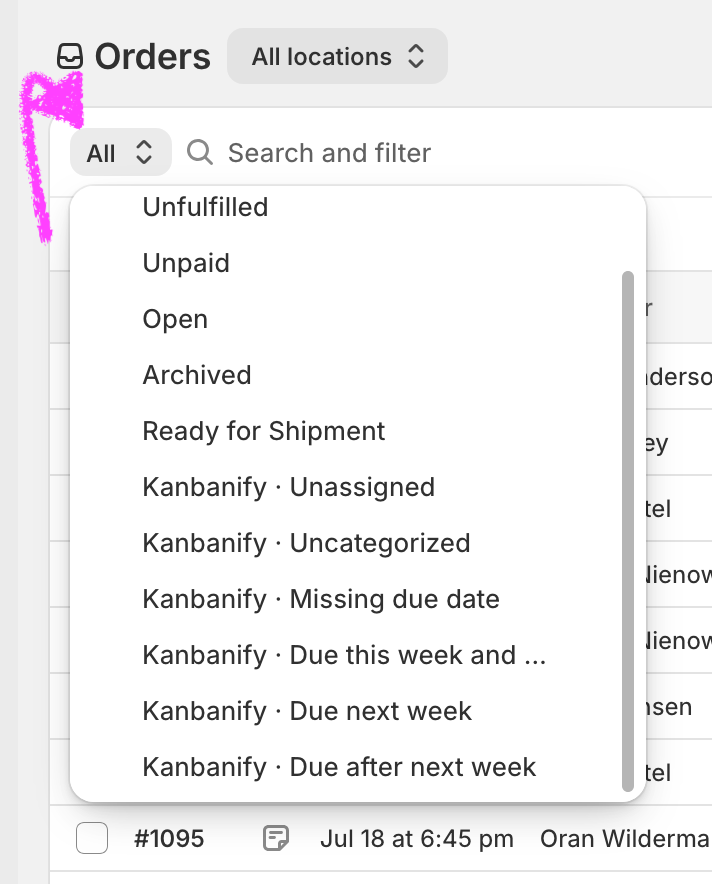
The saved views include open, non-fulfilled Orders. Because the action calculates exact YYYY-MM-DD week boundaries, rerun it each week after Monday begins in your shop’s timezone.
Update Due Dates from Order Details
You can edit due dates from the Kanbanify board, but Kanbanify also provides controls in Shopify Admin so you can update them while viewing individual orders or the Orders list.
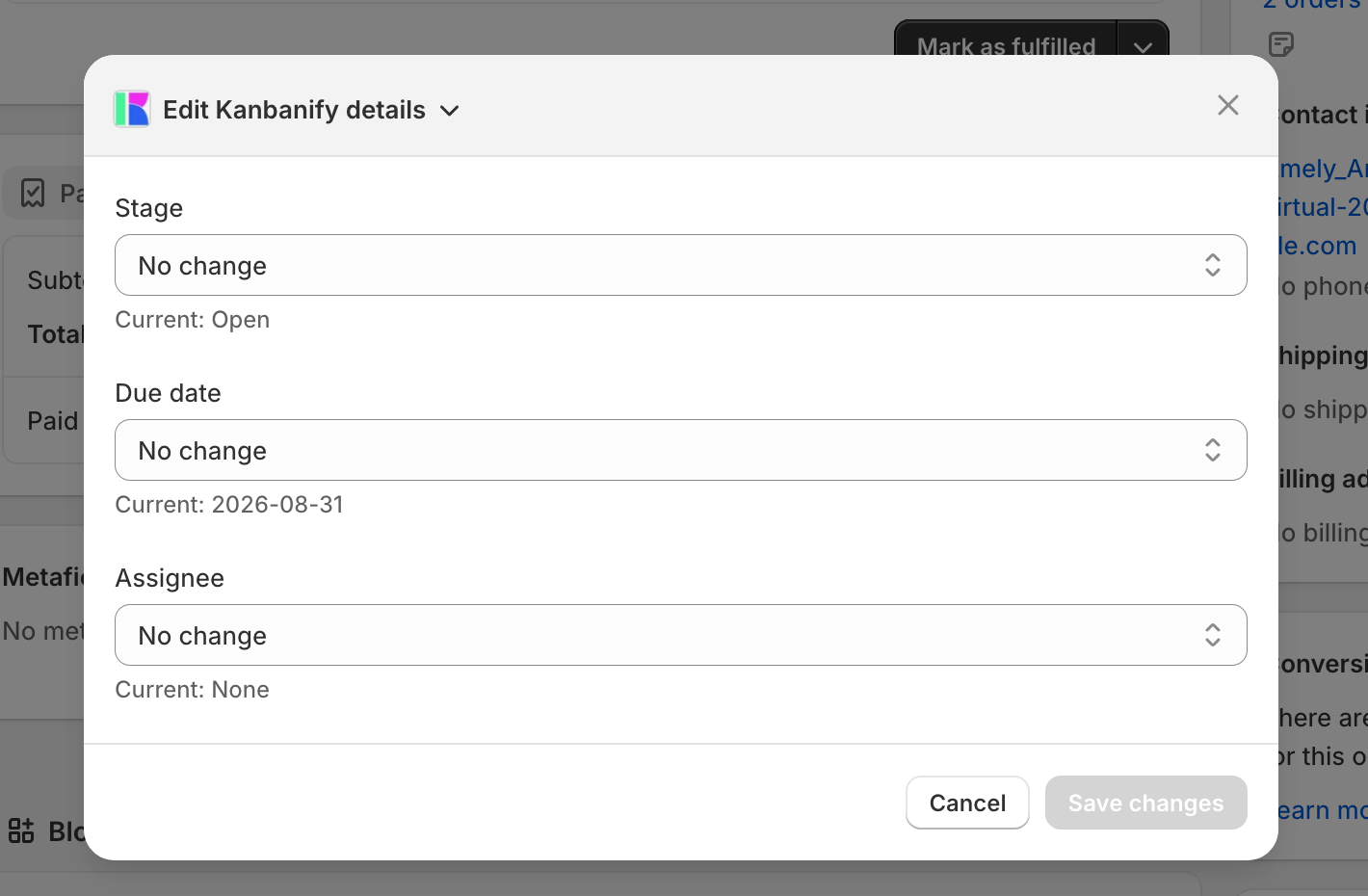
Single Order
- Open the order in Shopify Admin.
- Open the Kanbanify details block.
- Click Edit.
- Set or clear Due date.
- Save.
Multiple Orders
- Select multiple Orders in the Shopify Orders list.
- Open Actions → Edit Kanbanify details.
- Set or clear Due date for the selection.
- Save.
Important Behavior
Internal due dates are stored as strict YYYY-MM-DD values. Turning off their board visibility only hides them from cards; the stored values remain available for editing through Order details actions.
Was this article helpful?
Thanks for your feedback!